

In order to use a security key with Duo, make sure you have the following:
- A supported browser (Chrome 70, Firefox 60, Safari 13 or later), or Microsoft Edge 79 or later. Support for authentication is limited to web applications that show Duo's inline browser prompt.
- An available USB port.
- A supported USB security key. WebAuthn/FIDO2 security keys from Yubico or Feitian are good options. U2F-only security keys (like the Yubikey NEO-n) can't be used with Firefox.
Step One: Login to Passport York
Go to Manage My Services and log in to Passport York

Step Two: Welcome Screen
To go through the setup process, please click Setup. Otherwise, click on Setup Later. You have up-to 14 business days to setup a device before login is permitted.
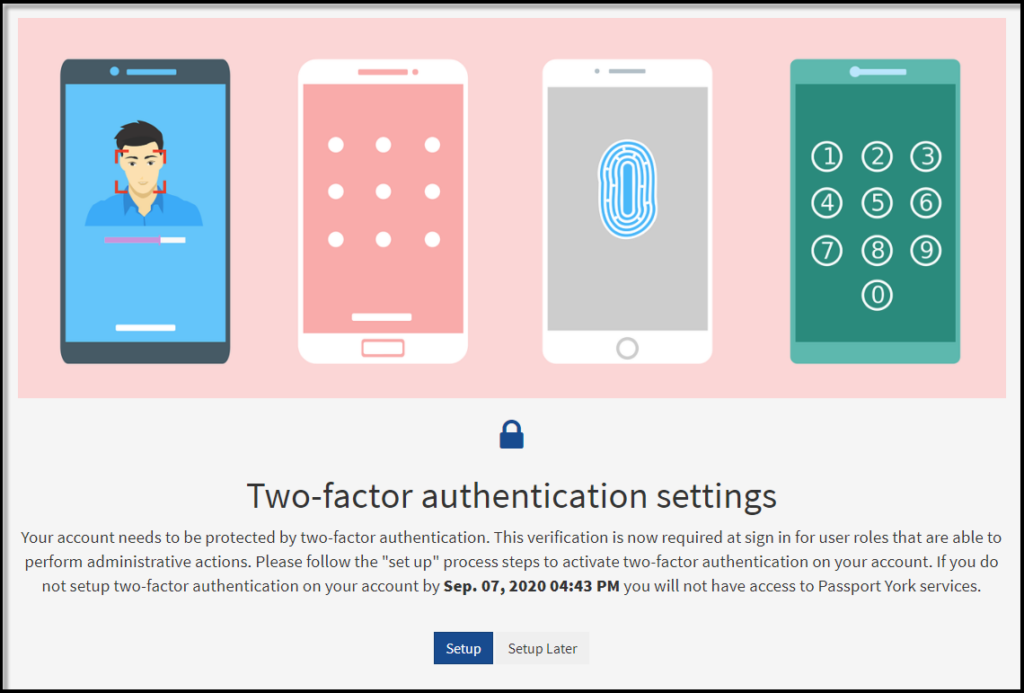
Click Start setup to begin setup your device

Step 3: Choose Your Authentication Device Type
Select Security Key and click Continue

Make sure that you are not blocking pop-up windows for the enrolment site before continuing

Step 4: Insert and tap your security key

Depending on your security key, you will need to tap, insert, or press a button on your device to proceed.
When enrolling your security key, you'll be prompted to tap to enroll your security key (possibly more than once). You may also be asked if you want to allow Duo to access information about your security key (click Allow or Proceed as applicable).
You will see whether the security key identification was successful or not.

Step 5: Security Key registered

Click on Continue to Login
Step 6: Authenticate
Helpful tip: Enable the 30-day "Remember Me" option by checking the box at login time to reduce how often 2FA is required on a particular trusted device. Never enable this option on public or shared devices.

Click Use Security Key
The illustration below was done on a windows system

Touch you security key to authenticate.
If you need assistance or experience login problems after 2FA is activated, please contact askit@yorku.ca or your local IT support group.
Go back to 2FA Setup page