
Android Users:
Some native and third-party mail apps do not support Modern Authentication. Please install the Microsoft Outlook app on your Android device.
iOS users:
The preferred method is to use the Microsoft Outlook app.
The built-in mail app included with your iPhone or iPad works with Duo 2FA, as long as your iOS version is 11 or better. If your device meets the Duo requirement and you are constantly being prompted to enter your Outlook password, you need to delete and re-add your Outlook account as shown below.
Step 1. Go to Settings > Passwords & Accounts > [Select your YorkU Outlook account] > Delete Account


Step 2. Re-add your YorkU Outlook account. Settings > Passwords & Accounts > Add Account > Exchange


Step 3. Enter your full YorkU email address e.g duomfa@yorku.ca. For the Description, you can type in YorkU. Click Next.

Step 4. Click Sign In and enter your Passport York password. Then click Sign In again.

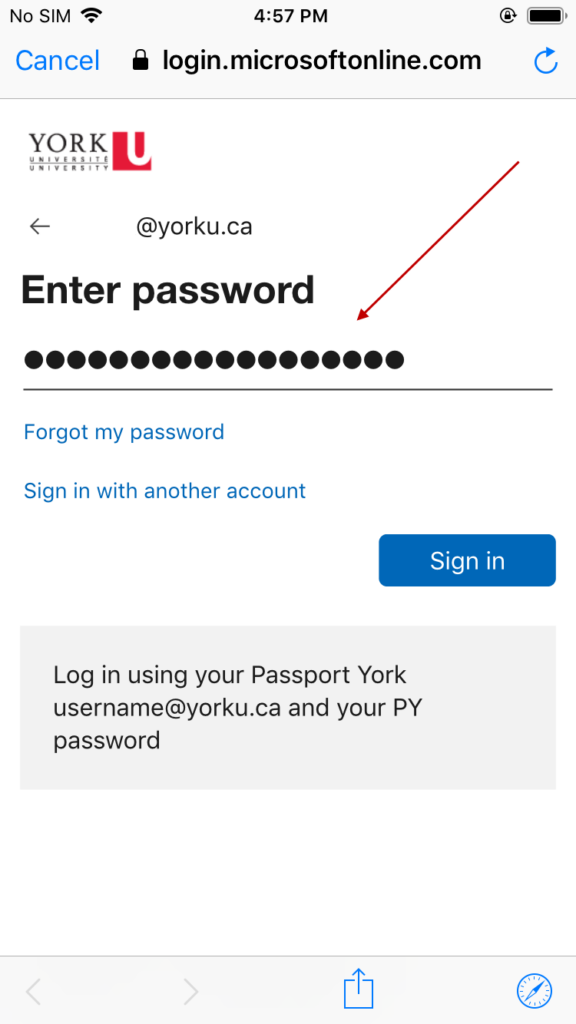
Step 5. Assuming that your iPhone/iPad has a passcode, you can click Save Password and validate the Duo request on your phone.


Step 6. Microsoft may prompt you for a permission request. Click Accept and select your desired Exchange attributes.


Congratulations, Your YorkU Outlook account has been successfully re-added.
Step 7 (Optional). If you have more than one email account configured on your iPhone or iPad and wish to set the YorkU Outlook account as the default, go to Settings > Mail > Default Account and choose "YorkU".

