
Whether it’s your laptop, phone, tablet, or even your smart speaker, your devices are gateways to your personal and professional life. Keeping them secure is just as important as protecting your accounts. This week, we’re diving into practical ways to lock down your tech and keep threats and unauthorized parties out.
1. Keep Your Devices Updated
Why it matters: Software updates aren’t just about new features, they also patch critical security vulnerabilities that attackers can exploit.
What you can do:
- Start by enabling automatic updates for your operating system, apps, and antivirus software.
- Restart your devices regularly to ensure updates are installed.
- Don’t ignore update prompts! Delaying them can leave you exposed and increase your risk of compromise.

York Tip: UIT regularly updates university-managed devices. If you’re using a personal device for work, make sure it’s up to date too, especially if you access York systems or data.
2. Use Antivirus Software🛡️
Why it matters: Malware can steal data, spy on your activity, or lock you out of your device.
What to do:
- Install reputable antivirus software and keep it updated - York uses Microsoft Defender 🛡️
- Run regular scans to catch threats early.
- Avoid downloading files or apps from unknown sources.
York Tip: If you’re unsure whether a file or email attachment is safe, reach out to the Information Security team before opening it. We’re here to help 😊
3. Lock Your Devices When Not in Use
Why it matters: A moment of inattention can lead to unauthorized access.
What to do:
- Set short auto-lock timers (i.e. 5 minutes or less).
- Use strong PINs, passwords, or biometric locks (i.e. fingerprint, face ID).
- Never leave devices unattended in public or shared spaces.

York Tip: If you lose a university-issued device, report it immediately to the Information Security team.
4. Encrypt Your Devices 🔐
Why it matters: Encryption protects your data even if your device is stolen.

What to do:
- Enable full-disk encryption (i.e. FileVault on Mac, BitLocker on Windows).
- Use encrypted messaging apps for sensitive conversations (i.e. Signal)
- Avoid saving sensitive data in plain text or unsecured apps.
York Tip: Encryption is required for devices that store or access confidential university data. For questions related to encryption, reach out to the Information Security team.
5. Be Cautious with Public Wi-Fi
Why it matters: Public networks are often unsecured, making it easy for attackers to intercept your data.
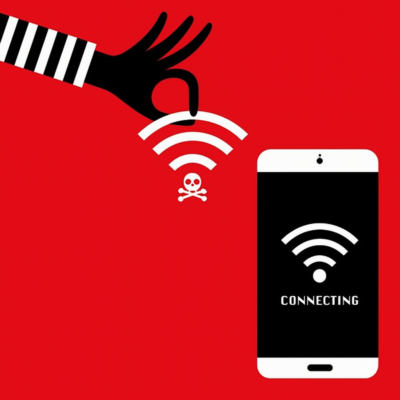
What to do:
- Avoid accessing sensitive accounts on public Wi-Fi.
- Use a VPN (Virtual Private Network) to encrypt your connection.
- Turn off auto-connect to open networks.
York Tip: York’s VPN is available for staff and faculty to use when working remotely or accessing university resources off-campus.
🔒 Bonus Tips for Mobile Devices
- App Permissions: Review what your apps can access (location information, camera, microphone) and revoke anything unnecessary.
- Remote Wipe: Enable “Find My Device” or similar features to locate or erase your phone if lost.
- Bluetooth: Disable when not in use to reduce the risk of unwanted/unknown connections.
📱 Device Security at York: What You Need to Know
At York University, we rely on a wide range of devices to support learning, research, and operations. That’s why device security is a shared responsibility. Here are some of the steps we've taken to help secure your devices:
- Duo 2FA: Required for accessing York systems.
- 1Password: Use it to store device credentials securely.
- IT Support: Need help securing your work laptop or work phone? Reach out to our team for support!
- Lost or Stolen Devices: Report incidents immediately to the Information Security team so we can take action to protect your data.
🧰 Quick Checklist: Is Your Device Cyber-Safe?
✅ Automatic updates enabled
✅ Antivirus software installed and running
✅ Device locks after inactivity
✅ Encryption turned on
✅ VPN used on public Wi-Fi
✅ App permissions reviewed
✅ Remote wipe enabled
If you checked most of these, you’re on the right track. If not, now’s the perfect time to level up your device security!