
The Microsoft Office 365 Education suite is available to all active YorkU students. Collaborate effortlessly and keep your files secure. Log in through your browser below or follow the instructions for desktop and mobile installation>>
**Please note: You must log in with your PY@yorku.ca (not PY@my.yorku.ca) and Passport York password. If you have forgotten your password, click here to reset it>>
Featured Services

Draft, save, and share documents with built-in writing assistance and handy templates.

Design captivating presentations and collaborate in real-time from any device.

Capture, organize, and access your notes in one place.

Turn data into insights with spreadsheets.
Additional Apps included in your Microsoft 365 Educational Suite:
OneDrive: Save and share your files wherever you go.
Outlook: Stay on top of emails, calendars, contacts, and to-do lists
- **Please note that Outlook is ONLY for graduate students
- For more information on Outlook, please visit the Email page>>
Teams: Bring everyone and everything together in one app, making it easy to stay organized and connected.
Forms: Easily capture the information you need with custom surveys, polls, and quizzes.
Clipchamp: An easy-to-use video editor for your multimedia content. Capture, create and edit videos with professional-quality tools.
How do I access it?
Microsoft 365 has automatic access. Every user has access to the Microsoft 365 service by default—there is no need to request it.
**Please note: You must log in with your PY@yorku.ca (not PY@my.yorku.ca) and Passport York password.


Frequently Asked Questions
All of your computing accounts, including Microsoft 365, expire (you won't have access) when you leave the university. Please read more about accounts lifecycles to learn about your expiring accounts>>
Beginning February 2025, student OneDrive capacity will be 50GB. Students will also have access to their Google Drive storage.
Microsoft 365 will work on any device or system running a current version of a supported browser (Chrome, Firefox, Internet Explorer, Edge). For a full list of supported browsers, click here>>
Yes.
The document below will guide you through the process of sharing files from your OneDrive with external users.
Teams is our recommended and supported instant messaging option.
Some personal devices were self-enrolled in York University’s Microsoft device management (Microsoft Endpoint Management, or MEM) through normal sign-in actions over the years. This usually happened unintentionally during setup or the first time using Microsoft services. Here are some of the ways you could have self-registered in MEM:
When setting up a new Windows computer
When turning on a new Windows computer for the first time, you may have selected “Set up for work or school” and signed in with your Passport York credentials (username@yorku.ca).

When signing in to Microsoft apps for the first time
Signed in to a Microsoft app (Teams, Word, Excel, etc.) and selected “Yes” when asked to sign in to all apps on the device, and then signed in with your Passport York credentials (username@yorku.ca)

When connecting your account in device settings
By going into Settings > Accounts > Access work or school > Connect and successfully signing in with your Passport York credentials, username@yorku.ca.

Installing and singing in to the Microsoft Company Portal app
By downloading and installing the Microsoft Company Portal from the Appstore and successfully signing in with your Passport York credentials (username@yorku.ca).

UIT doesn't manage personal device passwords or encryption keys. You are responsible for keeping copies of your own credentials and recovery keys.
Over the coming days, UIT will remove self-registered (non-York-owned) devices from Microsoft Endpoint Management (MEM) on the dates listed below.
What Won't Happen
Removing your devices from MEM:
- Won't reset your device password
- Won't erase personal files or data
- Won't wipe or factory-reset your device
- Won't change disk encryption or encryption keys
- Won't remove access to Microsoft 365 apps (Outlook, Teams, OneDrive, Word, Excel, etc.)
What Will Happen
| Date & Time | Device Type | What You May See | What You May Need to Do | What Does Not Change |
|---|---|---|---|---|
| Mon, Feb 9, 10:00 a.m. | Personal macOS / iOS / iPadOS | Company Portal You can now uninstall this app. Your device is no longer managed by your company support. Access to company data, apps, and email might have been removed. Outlook Org Data Removal Your organization has removed its data associated with this app. | • Uninstall Microsoft Company Portal • Restart your device • If a sign-in issue occurs, you may need to uninstall and reinstall Microsoft 365 apps on your device | Personal files and device settings remain unchanged |
| Mon, Feb 9, 10:00 a.m. | Personal Android | Company Portal You can now uninstall this app. Your device is no longer managed by your company support. Access to company data, apps, and email might have been removed. | • Uninstall Microsoft Company Portal • Restart your device • If a sign-in issue occur, you may need to uninstall and reinstall Microsoft 365 apps on your device | Personal files and device settings remain unchanged |
| Tue, Feb 10, 10:00 a.m. | Personal Windows Device WITH a UIT-Prefix computer name | Signed out of Microsoft 365 apps after next reboot | Sign back in to your device with your biometrics (if previously enabled) or device password Re-authenticate to M365 apps on the next device reboot. | • Windows login remains the same • Biometric sign-in (PIN, fingerprint, face) continues if already set • Password login continues if biometrics were not set |
| Wed, Feb 11, 10:00 a.m. | Personal Windows Device WITHOUT a UIT-Prefix computer name | Signed out of Microsoft 365 apps after the next reboot | Sign back in to your device with your biometrics (if previously enabled) or device password Re-authenticate to M365 apps on the next device reboot. | • Windows login remains the same • Biometric sign-in (PIN, fingerprint, face) continues if already set • Password login continues if biometrics were not set |
| Thu, Feb 12, 10:00 a.m. | York-owned, non-AVD Windows devices | Nothing | Some users may need to: 1. Go into Settings>Accounts>Access work or school 2. Select Disconnect | Device remains York-owned and managed |
If your Windows device is encrypted, you should save your BitLocker recovery key before any device management changes.
- Open your web browser
- In the address bar, go to: https://myaccount.microsoft.com>>
- Sign in with your Passport York account (username@yorku.ca)
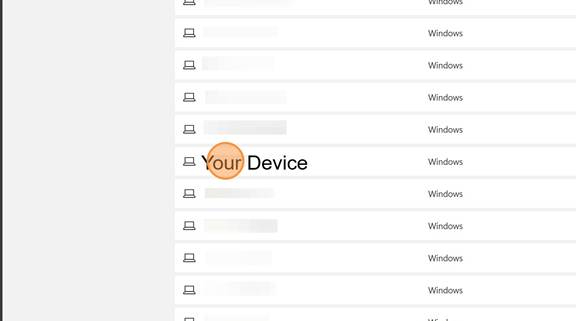
- Select Manage devices.
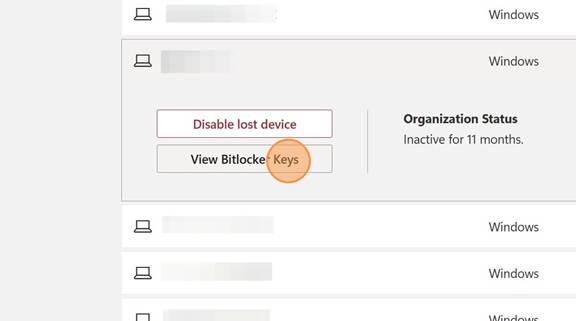
- Find your device in the list and select it
- Select View BitLocker keys
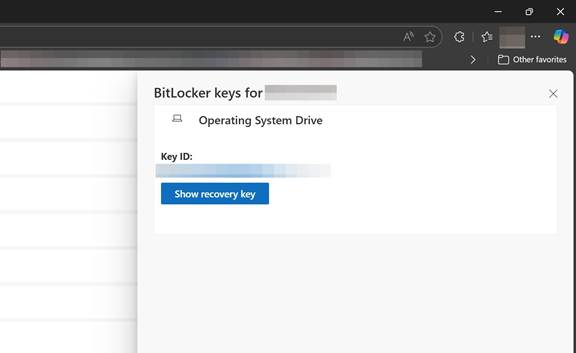
- Select Show recovery key.
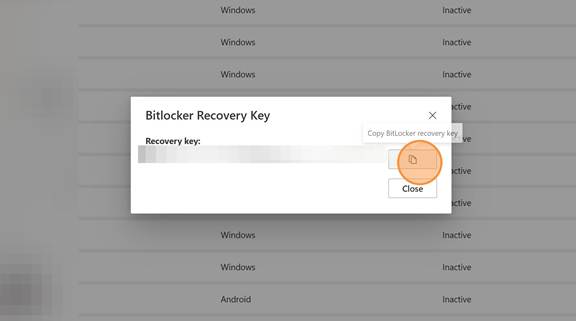
- Copy BitLocker recovery key.
- Save the key somewhere secure (for example, a password manager or written and stored safely).
- Select Close.

If you are unsure about any of these steps, please do not proceed and contact your local IT team for help.
Step 1 – Create a local account with administrator privileges.
- Open Settings > Accounts
- Scroll down and click Other Users.

- Click Add account

- If you see a How will this person sign in window, select, I don't have this person's sign-in information.
- If you don't see this screen, continue to the next step.

- On the Create account window, click Add a user without a Microsoft account

- Add a personal user profile including a Username, Password and Recovery questions.

- After the new account has been created, change the account type from Standard User to Administrator.
- Locate your account under Accounts> Other Users
- Click Change account type
- Change Standard User to Administrator
- Click OK


- Verify that the account was successfully created as an administrator

- Sign out of your current account

- Sign in with your new account
Step 2 – Back up your local data.
- Ensure you back up and copy all necessary data to a secure external location, such as a USB flash drive or a University-supported storage platform like M365 OneDrive, Google Drive, or FAS.
- Contact your local IT if you require assistance with the data backup.
- Proceeding with later steps may modify access to your device, especially if the local drive is encrypted.
Step 3 – Retrieve your BitLocker Recovery Key(s) in Microsoft Entra.
If your Windows device is encrypted, you should save your BitLocker recovery key before any device management changes.
- Open your web browser and go to https://myaccount.microsoft.com>>
- Sign in with your Passport York account (username@yorku.ca)
- Select Manage devices.

- Find your device in the list and select it

- Select View BitLocker keys

- Select Show recovery key.

- Copy BitLocker recovery key.

- Save the key somewhere secure (for example, in a password manager or in accordance with information security standards).
- Select Close.
If you have multiple devices or hard disks, you should save a copy for all of them.
- Instructions also available on https://www.yorku.ca/uit/faculty-and-staff-services/microsoft-365-for-faculty-and-staff/ > How to find and save your BitLocker Recovery Key.
Step 4 – Decrypt the drive by turning OFF BitLocker.
Disable BitLocker encryption on the operating system drive. This step is crucial as your encryption key(s) in Microsoft Entra will be unavailable after the computer is disconnected.
- Open Settings > Privacy & Security > Device encryption
- Toggle the Device encryption to Off. It will take a few hours to complete.


Step 5 – Disconnect the computer from Microsoft Entra.
This safely removes the computer from the University's Microsoft tenant.
- Open Settings > Accounts > Access work or school.
- Expand the account information by clicking the drop-down arrow
- Click the Disconnect button.


- You should be prompted to enter alternate account info. Enter the information for the local account that was created in Step 1.



Learn More
Not finding what you are looking for or need technical assistance? We are here to support you!